
A workspace is the local project Kestrel may inspect or change. A session keeps the conversation, activity, and results for one line of work. One workspace can have several sessions, and each session remains connected to the project where it began.
A Project is Desktop’s durable record for that local folder. It owns registered workspace identity and Mission Control state; it is not interchangeable with one conversation.
Continue an existing task
- Select the project from the workspace library.
- Open the session that contains the work you want to continue.
- Review the last messages, terminal state, and any waiting request.
- Confirm the active mode, model, and tools before asking Kestrel to proceed.
Start a separate task
Create a new session when the goal or working history should be independent. Do not create a replacement session merely because a run is waiting or failed; use the existing session’s control and recovery options first.
Mission Control
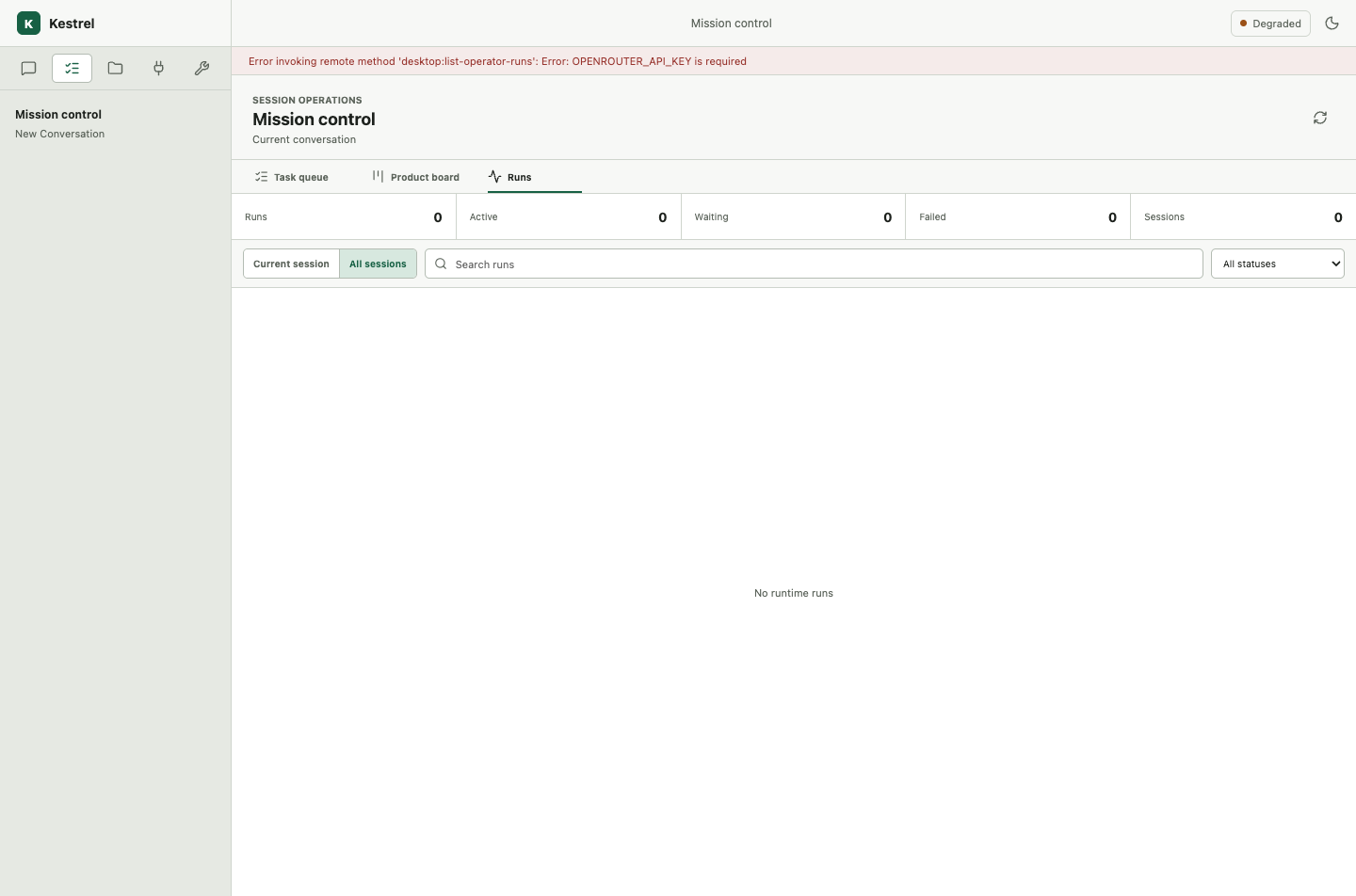
Mission Control records project work items, attempts, evidence, review, and acceptance. A session may contribute evidence to that project state, but run control and project acceptance remain different authorities.
Prepare the workspace
Desktop checks folder access, Git/worktree state, required project resources, and workspace readiness before execution. It reports the first owned failure rather than silently changing the project boundary.
Install guidance for the project
Use the Agent skills panel to install a standard SKILL.md package from a public HTTPS Git repository. Choose the branch and, when the skill is inside a larger repository, its repository-relative directory. Desktop shows whether each skill is pending, ready, stale, failed, or waiting for removal, along with the installed commit and content digest.
Desktop checks for branch updates when the project is activated. If work is running, installs, updates, and removals wait until the workspace is idle, so a run always uses one stable, verified skill snapshot. Inspect a skill to see its exact source and installed instructions. Skills provide guidance only; they cannot grant tools, credentials, or additional workspace access.
What persists
Desktop preserves the project library, sessions, conversation history, terminal outcomes, provider settings, Keychain credentials, Mission Control records, recovery state, and verified skill snapshots across restart and a manual 0.8 upgrade.